Thinning Device Data
Note: The action to Thin Data is related to the Purge Data action but Thin Data retains master records within the specified time window.
This topic addresses thinning of selected Node records for a specified time period. For deleting or purging Nodes, or purging expired device data from the database, refer to one of the following operations:
Delete Nodes: Delete from a Point in Time or Purge from system - Deleting a Node from a point in time or purging a Node and its records from the system are administrative actions that are useful for appropriate circumstances. See Deleting Nodes and Purging Records for more information.
Purge expired device data from the database - Purging expired device data from the database is an optional part of a system command to Perform Database Maintenance on your CygNet Measurement system. See Perform Database Maintenance for more information.
 Use the Thin Data button to access options to thin historical data records from the system by removing duplicate records for selected device Nodes, from a specified begin time (either going forward for all collected records, or until a specified end time) while retaining master records. Note that gas analysis data is not included in the thinning action. Master records, the data record determined by the system to be the most accurate for any given time span, are retained when device data is thinned using this administrative action. See Master Record in the CygNet Measurement Concepts topic for more information.
To purge all historical data records, including master records, for selected device Nodes for the specified time range, use the Purge Data action instead. See Purging Device Data for more information.
Note: Be certain of any decision to thin data from your system. The Thin Data action cannot be undone.
CygNet Measurement supports sending a command to thin device records (excluding Master records), for a single Node or for multiple Nodes at a time, via the Administrative menu in FMS Explorer only. The duplicate data is removed from the system entirely, and an audit record of the thinning action is maintained by CygNet Measurement. Once the data is thinned, the Node's collection status is retained for that time period, and it will appear to the system as though the duplicate data for the device was never present.
Note: The dates/times specified for the Thin Data action are always in Device time (D).
Example
If it is discovered that a device has duplicate data as of a certain time period, an administrator may decide to remove the redundant data, while retaining the Master record (the system-determined "good" or "best" data for the Node), by initiating the thinning action. Usage of this option can help reduce the burden on database and archiving resources.
You must have proper security authorization to perform these actions. See FMS Security (and NODE security event) for information about configuring security access for thinning device data.
Thinning Data from Device Nodes
To thin data from a device Node record, open the Admin menu in FMS Explorer, and then click Thin Data to access the Thin Data dialog box and define the action details.
|
Thin Data |
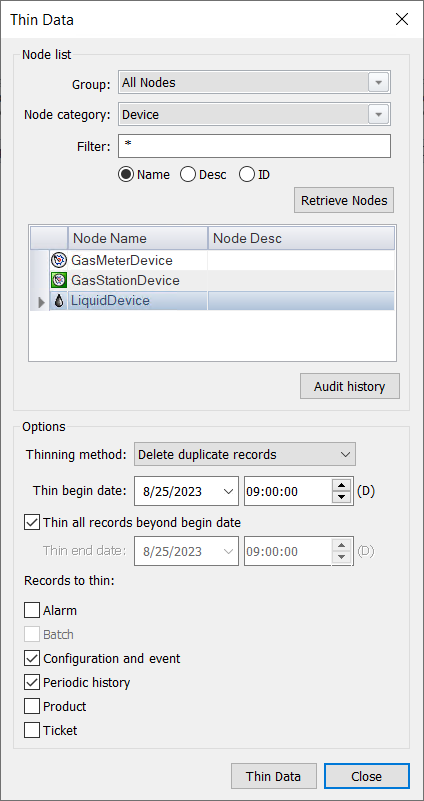
The following table describes options found on the Thin Data dialog box.
| Option | Description | |
|---|---|---|
| Node list | ||
|
Group |
Click to select the Group filter from the drop-down menu. Options are as follows.
Default value is All Nodes. |
|
|
Node category |
Click to select the Node category filter from the drop-down menu. Options are as follows.
Default value is Device. |
|
|
Filter |
Type a filter into the text box, and click the filter type option to use. Options are as follows.
Defaults are * (multiple character wildcard) and Name. |
|
|
Retrieve Nodes |
Click to apply the filters selected in the Group , Node category, and Filter fields and view the results. Selection of multiple Node results is supported for the data thinning action. |
|
|
[Node Icon] |
Lists the icons indicating Node type for each Node that meets the defined filter criteria. |
|
|
Node Name |
Lists the Node names that meet the defined filter criteria. |
|
|
Node Desc |
Lists the descriptions of the Nodes that meet the defined filter criteria. |
|
|
Audit history |
Click to view the Audit History of Thin Data actions for the selected Node. See Viewing Audit History for more information. Note: Audit history can only be shown for a single Node at a time. If multiple Nodes are selected when you request audit history, results will be shown for the first Node selected. When no Node is selected, the button is unavailable. |
|
| Options | ||
|
Thinning method |
Click to select the Thinning method filter from the drop-down menu. Options are as follows:
|
|
|
(D) |
Enter the date/time, in Device time (D), from which to thin the device Node data. All data will be thinned from the date/time specified here, either going forward for all collected records (default) or until the specified Thin end date, if the Thin all records beyond begin date check box is cleared. Note: For hourly devices, select Thin begin date values to encompass the full hour containing the beginning of the data you want to thin. For daily devices, select Thin begin date values to encompass the full day containing the beginning of the data you want to thin, e.g. set the time equal to 00:00:00. Select the date/time from which to remove duplicates from the selected Node data, in the following ways.
|
|
|
Select the check box if you want to make the thin action persist from the Thin begin date (D), going forward for all collected records. Clear the check box to enable the Thin end date field and specify the time range end if you want to make the thin action range between the Thin begin date (D) and the Thin end date (D) only. |
||
|
(D) |
If the Thin all records beyond begin date check box is cleared, enter the date/time, in Device time (D), up until which you want to thin the device Node data. All data will be thinned from the Thin begin date specified, going forward in time until, but not including, the date/time specified here. Note: For hourly devices, select Thin end date values to encompass the full hour containing the end of the data you want to thin. For daily devices, select Thin end date values to encompass the full day containing the data you want to thin, e.g. set the time equal to 12:00:00 (midnight). Select the date/time until which you want to delete duplicates from the selected Node data, in the following ways.
|
|
|
Records to thin |
Select at least one of the following check boxes to include the selected record types in the data thin. Clear the check boxes to exclude selected record types from the data thin. Note: Be certain of your selection(s), as there is NO "undo" for this action.
|
|
|
Thin |
Note: Be certain of your action, as there is NO "undo" for this action. Click Thin to thin duplicate records for the selected device Node data from the system. This will completely remove the duplicate records from the start date/time forward, or until the specified end date/time, and will also historize the change. A confirmation message will appear, asking you to verify that you wish to thin the data. Click Yes to continue. A second cautionary message will appear, reminding you that thinning data is permanent and complete; thinned records cannot be retrieved. Click Yes to complete the thin action. Once the data thin is complete, a command dialog box will appear, displaying results of the Thin Data command. Results are displayed in table form in the top pane. Click on any data row to view detailed command results for the selected record in the bottom pane. |
|
|
Close |
Click Close to close the dialog box. |
|
Auditing Thinned Device Data
No record is kept of the specific data that is thinned, but the FMS maintains an audit trail describing the thin data operation. If a thin action is unsuccessful, an error will be logged. Errors can also be viewed in the command log file, or via the service console window.
Logs can be viewed through the Commands menu View button, by selecting User/Purge Device Data for the Command type (look for "Thinning method = Delete duplicate records" value in the results pane for thinning actions), or through the CygNet Audit Service.
See Viewing Command Logs in this section and Audit Service View in the Auditing section for more information.


